Guide · prepare data · 2-minute read
Get your Excel file ready
Any normal spreadsheet works: one row per form you want to send, column names in the first row. You don’t have to tidy it first — Fillhand reads it the way Excel shows it.
1
No file yet? Let the form make one
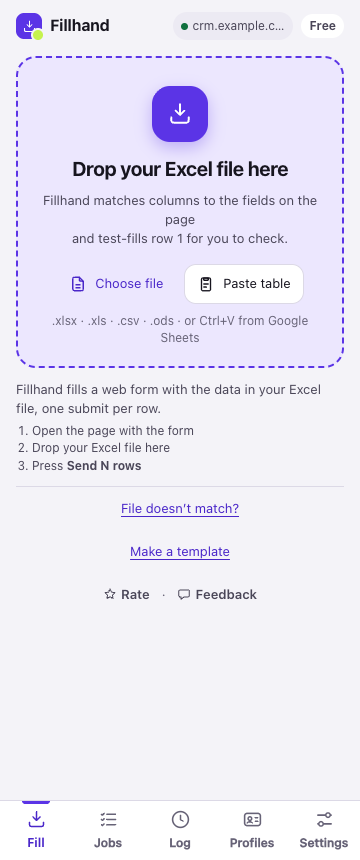
Open the form, click the Fillhand icon and press Make a template. You get an .xlsx whose column names are the form’s field labels, with 1 example row and a second sheet listing the choices each list accepts.
2
One row = one form sent
The first row holds the column names. If they match the field labels, Fillhand pairs them by itself. If not, you pick the field once and Fillhand remembers it next time.
3
Use the file you already have
Fillhand opens .xlsx, .xls, .csv, .tsv and .ods. From Google Sheets or Excel online, copy the cells and press Paste table (or Ctrl+V).
4
Values come out as Excel shows them
“0123” keeps its leading 0, 15 % stays “15%”, dates and money follow the cell’s format. Need the number behind it? Use Use the raw value for: on that column.
5
Hidden rows and several sheets
Hidden or filtered-out rows are left out and Fillhand says how many; press Take hidden rows to include them. With several sheets it picks the one with data (or the one you used last time); switch with the Sheets chip.
Messy data or a tricky form? Use the file as it is
Phone numbers written five ways, “12.5M” in a money column, dates in mixed styles, names in capitals, a group name only on its first row — Fillhand spots these and offers to tidy them in one press, without touching your file. See When data is missing or messy.
Searchable lists, date pickers, a list that depends on another (country → city), parts that appear after a choice, forms inside a frame: nothing to prepare in the file. Write each value as you would pick it on the form. See When the form needs different data.