Guides · 13 November 2026 · 3 min read
Will your apps still work on macOS 28? How to find Intel-only apps, plug-ins and drivers
Rosetta 2 is being phased out. Here is how to find which of your apps, audio plug-ins, printer drivers and Quick Look add-ons are Intel-only, and what to do about each one.
Since 2020, Apple silicon Macs have run older Intel apps through Rosetta 2, a translator you never had to think about. Apple has said macOS 27 is the last version to fully support Intel apps that way. After that, only a small subset is kept, mainly for older games. Any app or add-on that is still Intel-only may simply stop opening.
The good news: most popular apps went native years ago. The problems hide in the corners — an old utility, a printer driver, an audio plug-in, a Quick Look add-on someone installed in 2019.
Check one app by hand
- In Finder, select the app in Applications and press ⌘I (Get Info).
- Look at Kind: Application (Apple silicon) or Application (Universal) is fine. Application (Intel) needs attention.
For every app at once: open System Information (hold ⌥ Option, Apple menu → System Information) → Software → Applications, and sort by the Kind column. This covers apps only, not plug-ins or drivers.
Check everything with the macOS 28 report
The macOS 28 tab in Uptend scans your apps and the add-ons System Information doesn't show, then gives your Mac a readiness score. It's free.
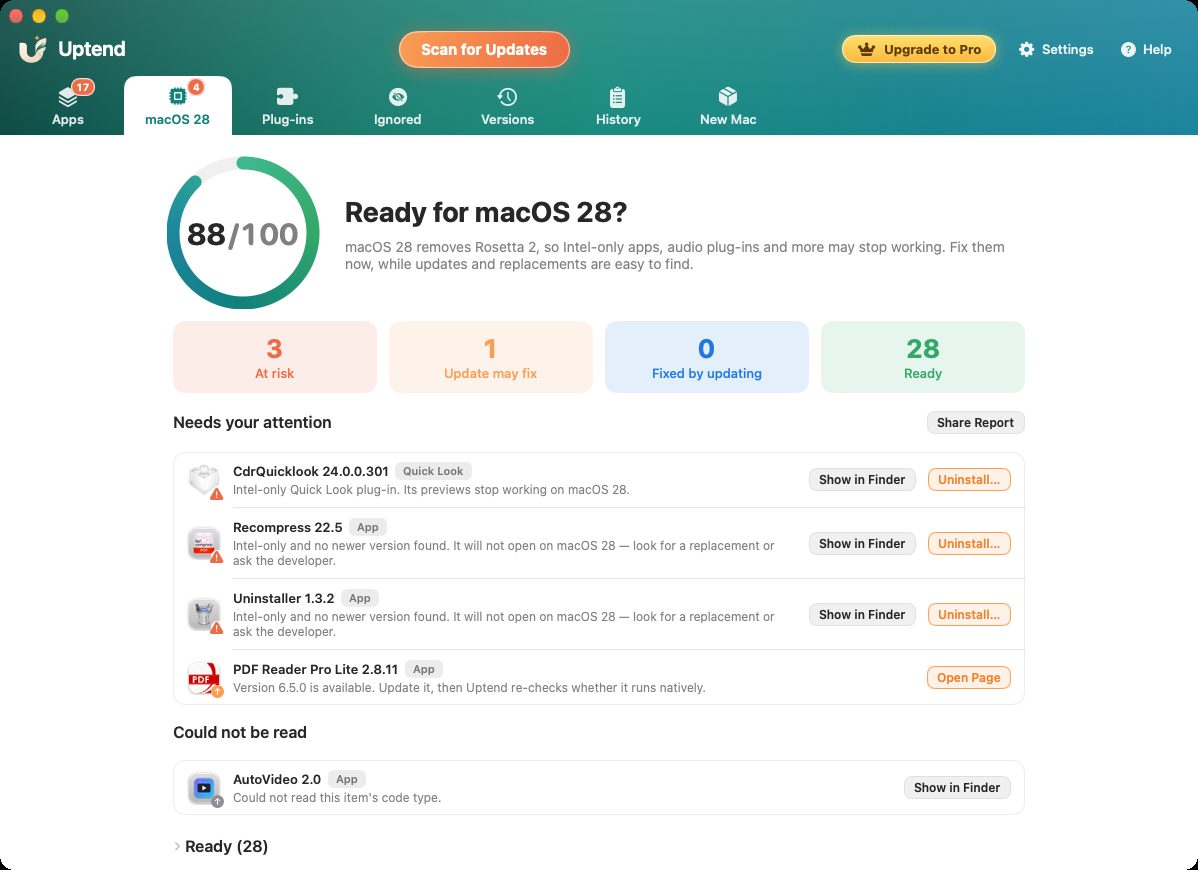
Each item comes with a plain explanation and a next step:
- Fixed by updating — a newer, native version already exists. Update and you're done.
- Update may fix — a newer version exists, but Uptend can't tell yet whether it's native. Update it, and Uptend checks again.
- At risk — Intel-only, with no newer version found. Look for a replacement, ask the developer, or uninstall it if you no longer use it.
- Could not be read — Uptend couldn't read the item's code type, so check it by hand with Get Info.
Share Report exports the list. That's handy if someone else looks after your Mac, or for an IT ticket at work.
Don't forget plug-ins and drivers
Audio plug-ins (AU and HAL), printer and scanner drivers, and Quick Look generators live in Library folders you never open. The Plug-ins tab lists them with their architecture, so you can spot the Intel-only ones.
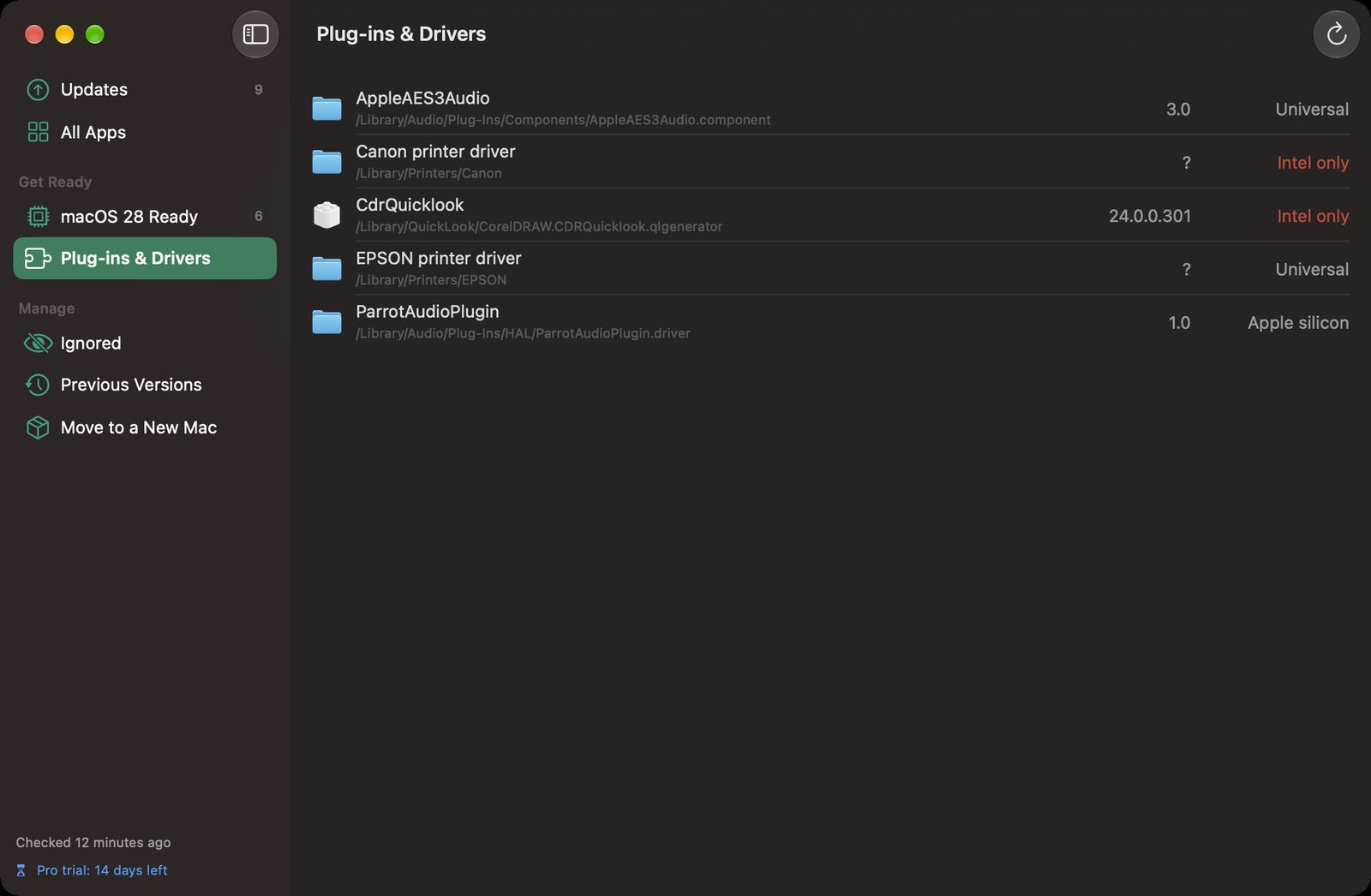
For printers, check the manufacturer's site for a current driver. Many modern printers also work with no driver at all through AirPrint. Musicians should check each plug-in vendor's download page. Most have native versions, but you have to download them yourself.
A simple plan before upgrading
- Make a Time Machine backup.
- Run the report and update everything marked Fixed by updating.
- Find replacements for At risk apps you still need, and uninstall the rest. Uptend's uninstaller is free.
- Run the report again until your score is where you want it, then upgrade.
Download Uptend See all features →
Quick answers
How do I know if a Mac app is Intel-only?
Select the app in Finder and press Command-I. If Kind says Application (Intel), it is Intel-only. Apple silicon and Universal apps run natively.
Will Intel apps work on macOS 28?
Apple has said macOS 27 is the last release with full Rosetta 2 support for Intel apps; later versions keep only a limited subset, mainly for older games. Intel-only apps and add-ons should be updated or replaced before upgrading.
How can I check plug-ins and drivers, not just apps?
System Information lists only applications. Uptend's free macOS 28 report also scans audio plug-ins, printer drivers and Quick Look add-ons and shows which are Intel-only.