Guides · 13 November 2026 · 3 min read
How to update all your Mac apps at once (App Store, Homebrew and direct downloads)
Your Mac apps come from three places and update in three different ways. Here is how to see every available update in one list and install them together.
Open a few of your Mac apps and you will probably find at least one asking to update, and several that are quietly out of date without telling you. That is not your fault. Mac apps come from three different places, and each one updates differently.
Why some apps never seem to update
- Mac App Store apps update through the App Store. Easy, but only for apps you got there.
- Apps downloaded from a developer's website (browsers, Office, Blender, Zoom, most utilities) each have their own updater. Some check automatically, some only when you open them, some never.
- Homebrew apps update only when you run
brew upgradein Terminal.
So the apps you open every day stay fresh, while the ones you use once a month fall months behind. Those are the ones that miss security fixes and break after a macOS upgrade.
The manual way (free)
- Open the App Store → Updates and install what's listed.
- For each other app: open it and choose Check for Updates… from the app menu (the menu named after the app).
- If you use Homebrew: run
brew outdated --cask --greedy, thenbrew upgrade --cask --greedy.
It works, but with 30–50 apps it takes an hour, and some apps don't have a Check for Updates menu at all.
The one-list way with Uptend
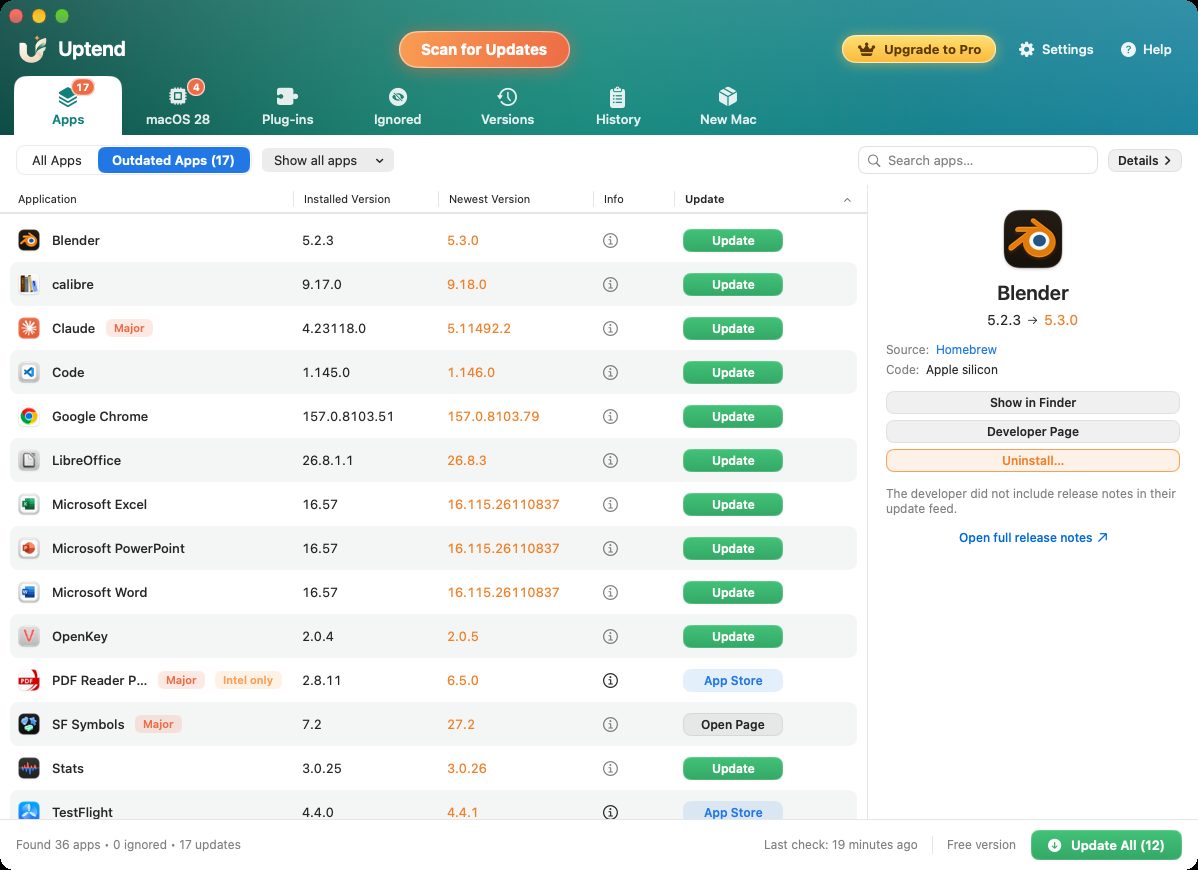
Uptend checks all three sources at once — each developer's own update feed, Homebrew's catalogue and the App Store — and shows every app in one table: the version you have, the newest version, and an update button.
What the labels mean
- Major — a big version jump (for example 2.0 → 3.0). Worth a look at the release notes before updating, because big jumps sometimes change features or pricing.
- Intel only — the copy you have doesn't run natively on Apple silicon. Often the update fixes that (more on that in our macOS 28 guide).
- Update / App Store / Open Page — Uptend installs direct-download and Homebrew updates itself, sends App Store apps to the App Store, and opens the developer's page when an app can only be updated by hand.
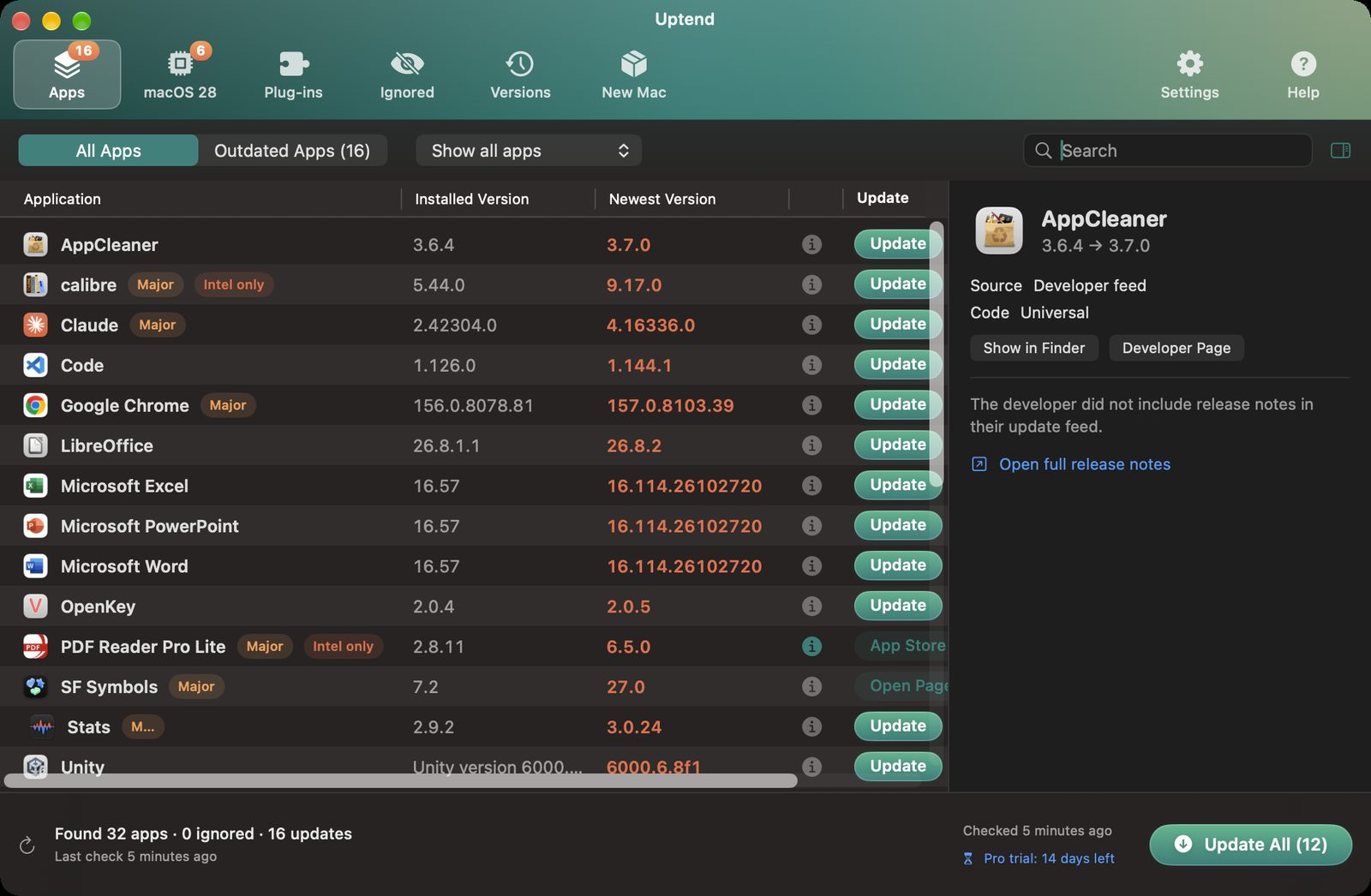
Click any app to see where the update comes from (developer feed, Homebrew or App Store), whether it's built for Apple silicon or Universal, and the developer's release notes.
Is it safe to update everything at once?
Usually yes, and Uptend adds three safety nets:
- Every download is checked: same developer signature as the app you have, plus Apple's own security check.
- It keeps the previous version for 7 days. If an update breaks something, go back from the Versions tab. Every change is recorded in History.
- Right-click an app to skip a version, snooze it or ignore it. If you used MacUpdater, you can import its ignore rules.
Free vs Pro
Finding updates and getting alerts is free forever. You can click Open Page and update by hand at no cost. Pro installs updates for you, in one click with Update All or automatically in the background on a schedule. It also summarises and translates release notes into your language with Apple Intelligence on your Mac (macOS 26 or later).
Download Uptend See all features →
Coming from MacUpdater? Read MacUpdater has stopped — what to use instead.
Quick answers
How do I update all apps on my Mac at once?
Mac App Store apps update from the App Store, Homebrew apps with brew upgrade, and everything else from each app's own updater. An update manager such as Uptend checks all three sources and lists every available update in one place, with an Update All button.
Why are some of my Mac apps not updating?
Apps downloaded from a developer's website use their own updater, and many only check when you open them. Apps you rarely open fall behind without telling you.
Can I undo an app update on Mac?
macOS has no built-in way. Uptend keeps the previous version of each app it updates for 7 days, so you can roll back from its Versions tab.