Guides · 13 November 2026 · 3 min read
New Mac? Bring your apps, not years of clutter
Migration Assistant copies everything, including the junk. Here is how to set up a new Mac fresh and still get all your apps back quickly.
Migration Assistant is great when you want an exact copy of your old Mac. But it also copies years of leftovers: apps you tried once, old login items, caches, Intel-only tools that won't run on the new machine. Many people prefer a clean start — move your documents through iCloud or an external drive, then reinstall only the apps you actually use.
The hard part of a clean start is remembering every app and finding where each one came from. Here's how to do it.
Step 1: make a list on the old Mac
The free way: open Applications in Finder, switch to list view, and take a screenshot or print the list. If you use Homebrew, brew bundle dump writes a Brewfile of everything it installed.
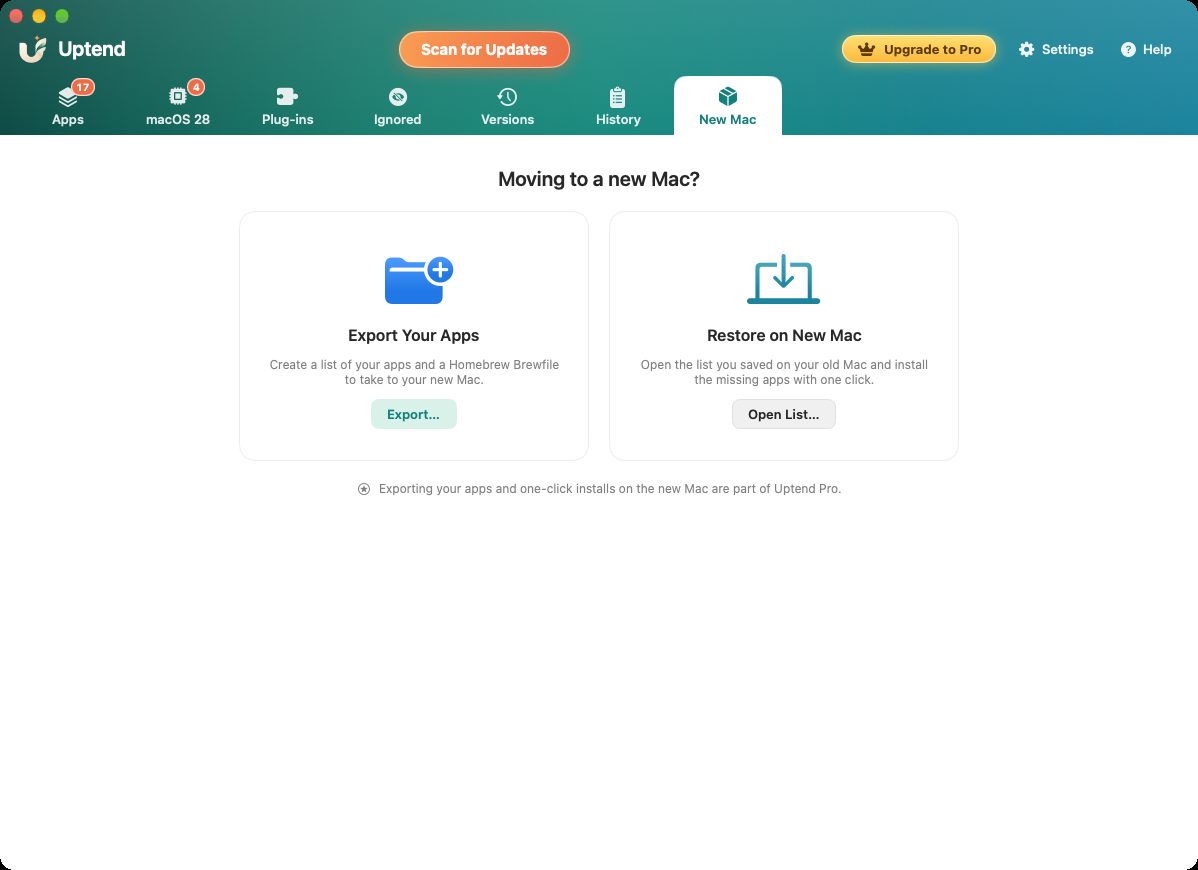
With Uptend, open the New Mac tab and click Export…. You get a list of your apps plus a Homebrew Brewfile to take to the new Mac.
Step 2: decide what to leave behind
This is the moment to skip apps you no longer need. Before you export, run Uptend's free macOS 28 report. There's no point moving an Intel-only app that won't run on the next macOS anyway.
Step 3: reinstall on the new Mac
Copy the exported file to the new Mac (AirDrop, iCloud Drive or a USB stick), install Uptend, open New Mac → Open List…, and it compares the list with what's already on this Mac, then installs the missing apps:
- Apps Homebrew can install are installed in one click, in their newest versions.
- App Store apps are grouped separately. Your purchases carry over with your Apple Account.
- Apps that need their own installer open on the developer's page, so you always get the real, current version.
Licences for paid apps still need to be entered again. Find them in your e-mail or password manager before you wipe the old Mac.
What about settings and documents?
Uptend moves apps, not data. For documents and photos, use iCloud Drive and iCloud Photos or an external drive. For app settings, many apps sync through their own account. For the rest, you can selectively copy a folder from ~/Library/Application Support — or just enjoy fresh defaults.
Download Uptend See all features →
Exporting your apps and one-click installs on the new Mac are part of Uptend Pro. The free version still shows every app and its updates.
Quick answers
Should I use Migration Assistant or set up my new Mac as new?
Migration Assistant gives an exact copy, including old caches, login items and unused apps. Setting up as new is cleaner; move documents with iCloud or a drive and reinstall only the apps you use.
How do I get a list of all my Mac apps?
Open Applications in Finder in list view, or run brew bundle dump for Homebrew apps. Uptend exports a single list of your apps with a Homebrew Brewfile and the source of each app.