Guides · 13 November 2026 · 3 min read
How to free up space on your Mac without deleting anything you need
"Your disk is almost full" again? Here is what is actually safe to delete on a Mac, what isn't, and how to clean up with a way back if you change your mind.
Most of the space on a full Mac isn't taken by your photos or documents. It's things that piled up quietly: caches, logs, old installers in Downloads, developer build folders, iPhone backups and device support files. Some of that is safe to delete, and some of it really isn't. The trouble with most cleaners is that they don't tell you which is which.
Start with what macOS already offers (free)
- Open System Settings → General → Storage to see the big categories.
- Use Recommendations: empty Trash automatically, store files in iCloud, review large files.
- Sort your Downloads folder by size and remove old installers (
.dmg,.pkg,.zip) of apps you've already installed.
What is safe to delete — and what isn't
- Usually safe: app and browser caches (apps rebuild them), old logs, installers you've already used, developer build folders like Xcode's DerivedData, and package caches.
- Careful:
~/Library/Application Supportand~/Library/Containers. These hold app data, settings and sometimes your documents. - Never: anything in
/System, or files you don't recognise just because they're large.
The safe way with Sweepvault
Sweepvault was built around one rule: only remove what is certainly safe, and keep a way back.
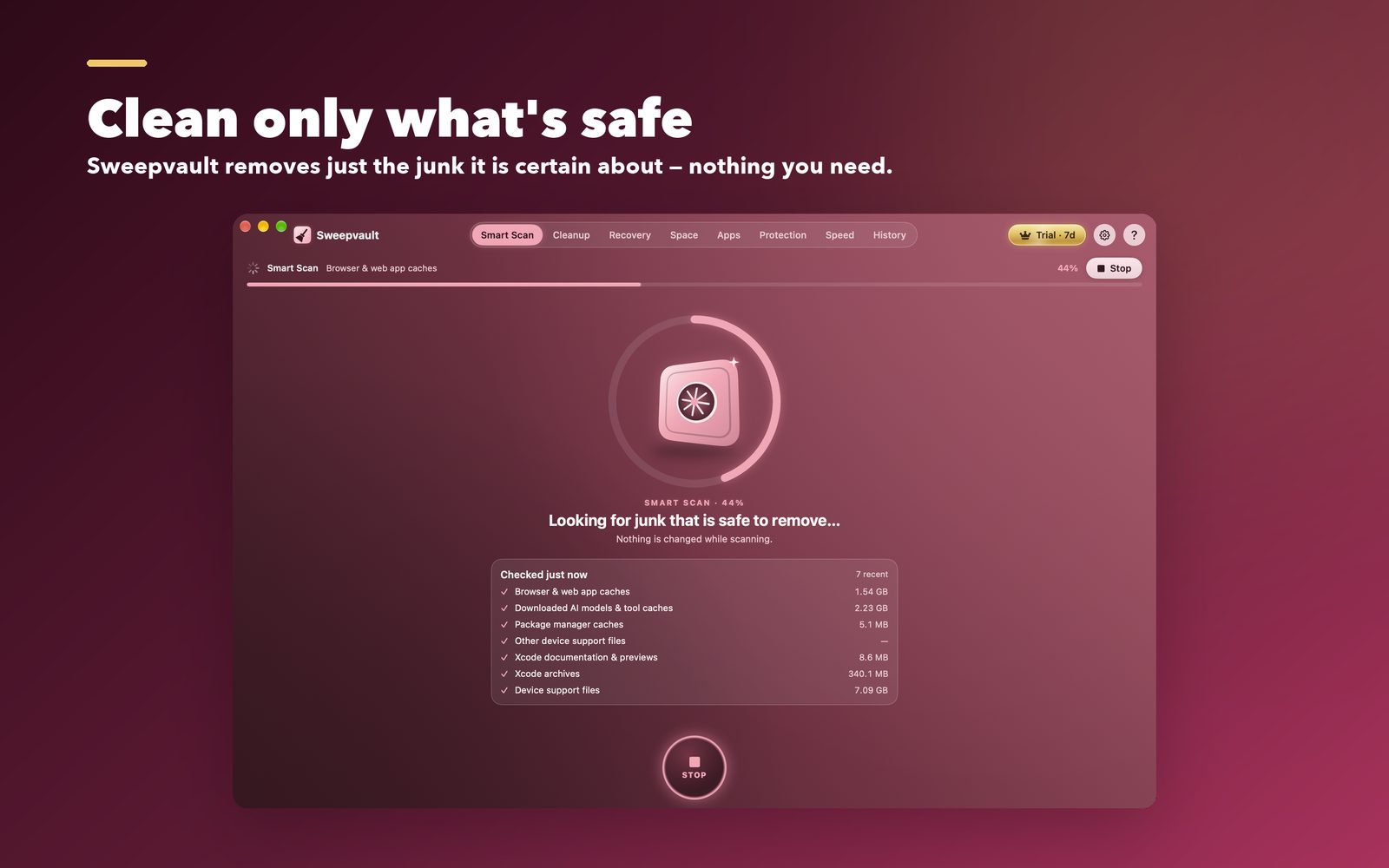
Smart Scan looks for junk that is safe to remove, broken login items left behind by deleted apps, and big files you've forgotten. Then Cleanup shows every group with the reason it's safe, so you can decide.

There's a deliberate difference in how things are removed. Rebuildable data, such as caches, is deleted, because apps recreate it. Anything personal, such as old downloads, large files and uninstalled apps, goes into the Undo Vault for 30 days first. Changed your mind? Put it back with one click. The vault is free, forever.
Find the big stuff yourself
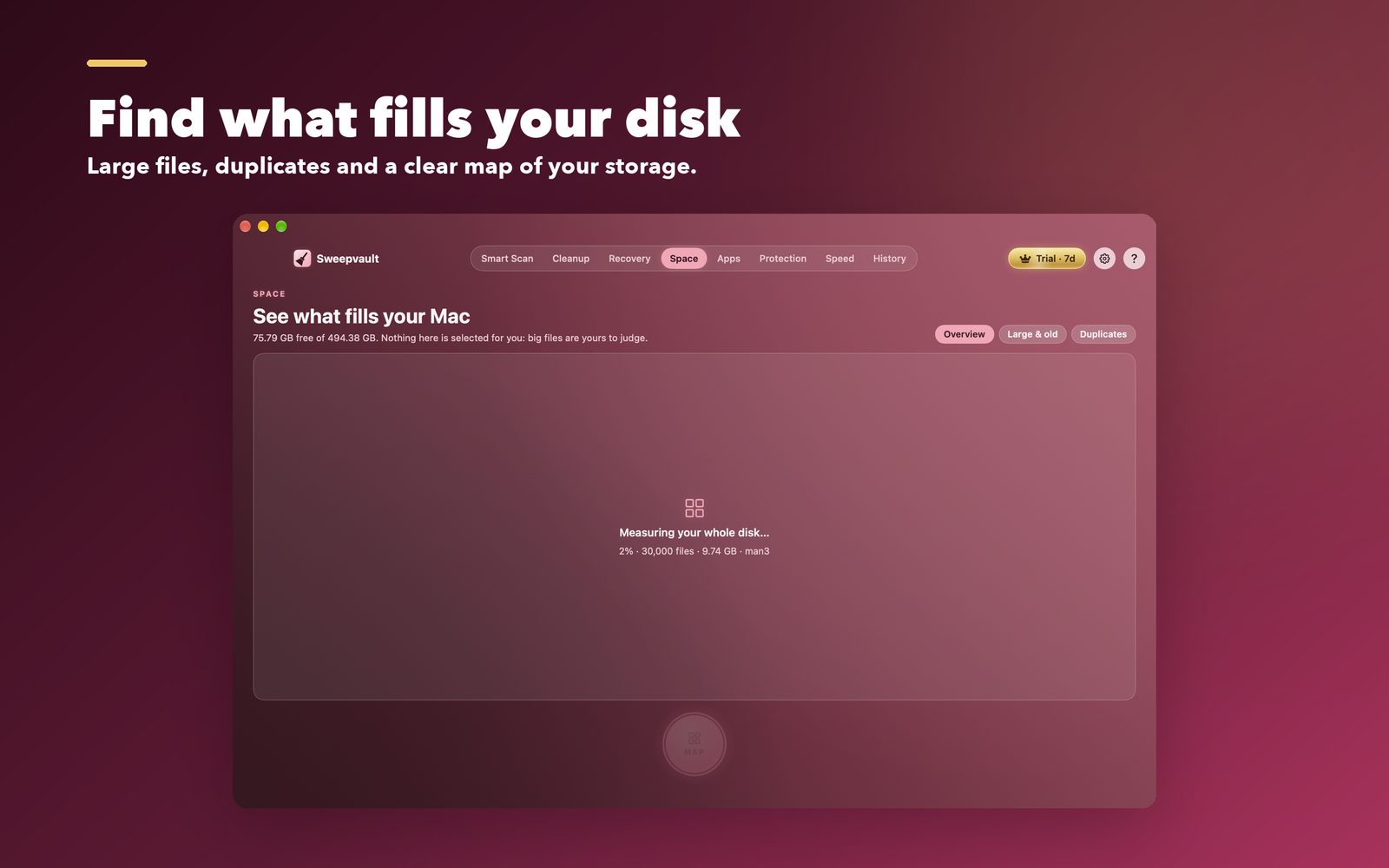
Caches are only part of the story. The Space tab maps your home folder as blocks, so you can see where the gigabytes went. It also has Large & old and Duplicates lists. Nothing is pre-selected. Big files are yours to judge.
Developers: this is where the gigabytes are
If you write code, your biggest wins are usually Xcode's DerivedData and iOS DeviceSupport, node_modules in old projects, package-manager caches (npm, pip, Homebrew), and downloaded AI model caches. Sweepvault finds these too and tells you which ones rebuild themselves.
See Sweepvault →
Quick answers
What is safe to delete on a Mac to free up space?
App and browser caches, old logs, installers you have already used, and developer build folders are generally safe because they are rebuilt or no longer needed. Avoid deleting things in Application Support, Containers or /System unless you know what they are.
Is it safe to delete cache files on a Mac?
Yes, app caches are rebuilt automatically, though apps may be a little slower the first time they rebuild. Sweepvault only removes caches it is certain are rebuildable, and sends anything personal to a 30-day Undo Vault instead of deleting it.
Can I undo a Mac cleanup?
Most cleaners delete permanently. Sweepvault keeps personal files and uninstalled apps in an Undo Vault for 30 days, so you can restore them with one click.