Guides · 13 November 2026 · 3 min read
Mac running slow? Check what starts by itself before you buy a "RAM booster"
Memory cleaners and "speed boosters" rarely help. Here is what actually slows a Mac down, how to check it for free, and how to turn off background items safely.
When a Mac feels slow, it's tempting to download something that promises to "free up RAM" or "boost speed". Most of these do very little. macOS manages memory well on its own. Unused memory is wasted memory, and macOS deliberately fills it with cache that it releases the moment an app needs it. A "RAM boost" just throws away that cache, and then your apps load more slowly.
What actually slows a Mac down is simpler: a few apps using a lot of processor or memory, too many things starting at login, and a disk that's almost full.
1. Find the app that's working too hard (free)
- Open Activity Monitor (Applications → Utilities).
- Sort the CPU tab by % CPU. Anything staying high while you aren't using it is suspicious.
- In the Memory tab, look at Memory Pressure at the bottom. Green is fine, even if "Memory Used" looks high. Yellow or red means you really are short.
The usual suspects are browsers with dozens of tabs, sync and backup tools mid-sync, and a stuck helper process.
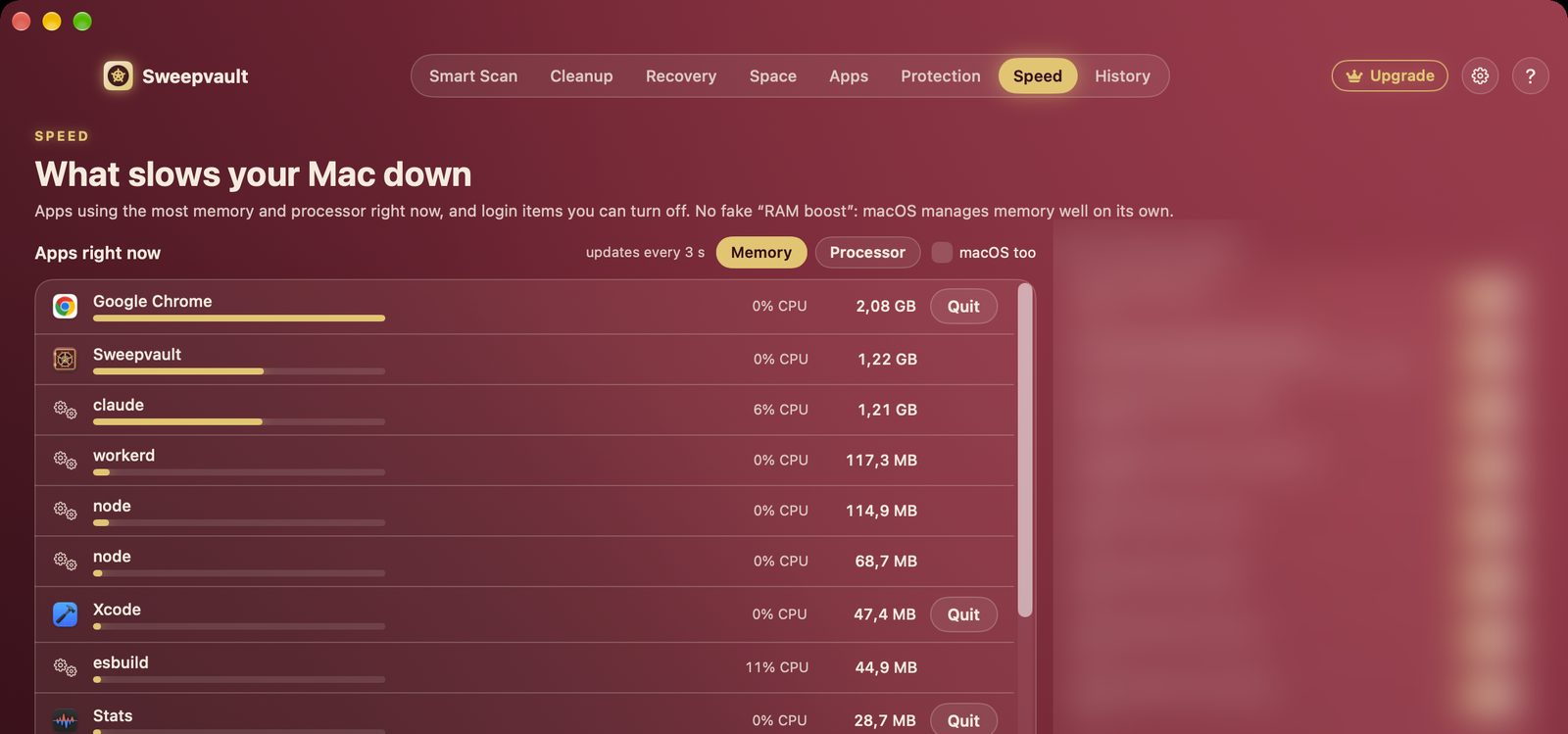
Sweepvault's Speed tab shows the same thing more simply: apps ranked by memory or processor, updated every 3 seconds, with a Quit button. It also lists your login items next to them.
2. Turn off what starts by itself
Check System Settings → General → Login Items & Extensions. The top list is apps that open at login, and Allow in the Background lists helpers. Turn off what you don't need.
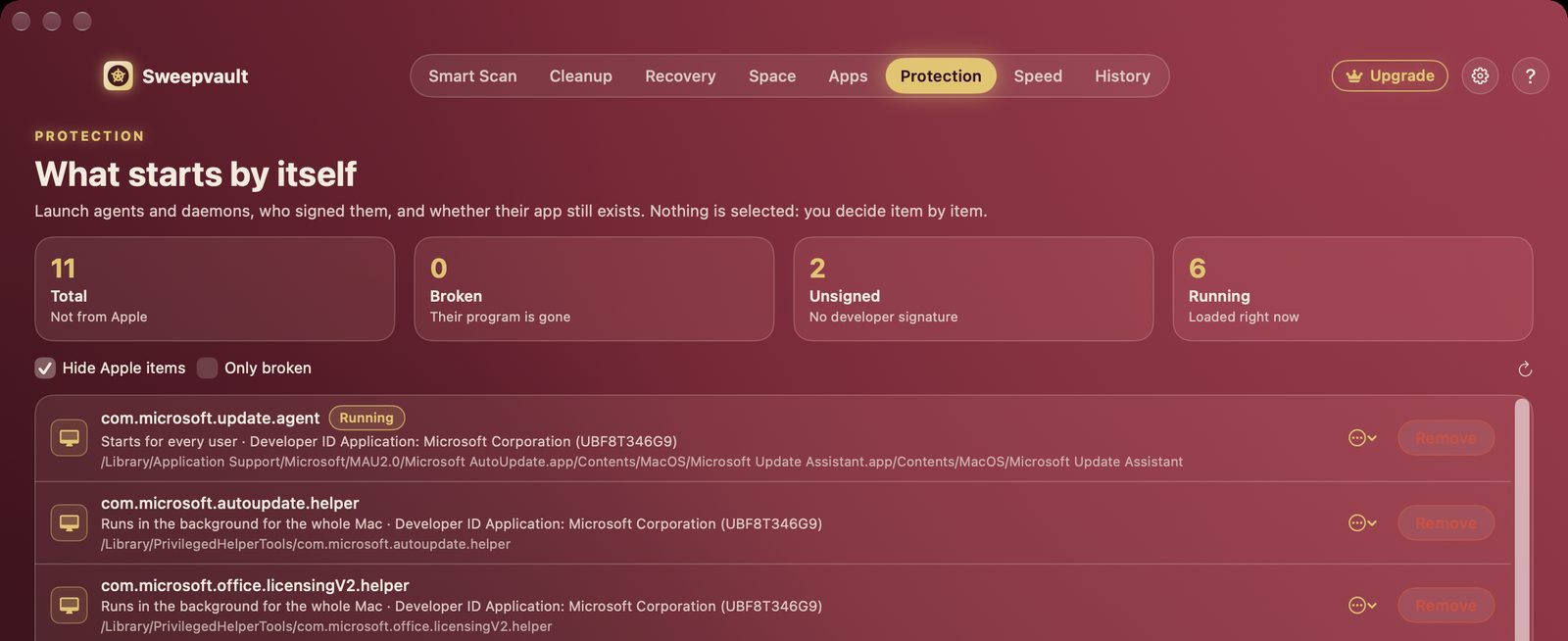
That screen doesn't tell you much about each item, though. Sweepvault's Protection tab shows every launch agent and daemon: who signed it, whether it's running now, and whether its app still exists. Broken items, whose app was deleted, are an easy win. Nothing is pre-selected. You decide item by item.
In the Speed tab, switching off a login item stops it now and at the next login. Nothing is deleted, so you can turn it back on any time.
3. Keep some free disk space
macOS needs free space for virtual memory, updates and caches. Below roughly 10–15% free, everything gets sluggish. See how to free up space safely.
4. The boring fixes that work
- Restart once in a while, especially after big updates.
- Keep macOS and your apps updated. Performance fixes ship in updates (how to update all apps at once).
- Old Intel-only apps run through Rosetta and use more resources. Native versions are faster (find them here).
See Sweepvault →
Quick answers
Do RAM cleaner apps make a Mac faster?
Generally no. macOS uses free memory as cache and releases it when apps need it. Forcing memory to be freed throws away useful cache and can make apps load more slowly. Check Memory Pressure in Activity Monitor instead.
How do I stop apps from starting automatically on Mac?
Open System Settings, General, Login Items & Extensions, and turn off items you do not need. Background helpers (launch agents) can also be reviewed in Sweepvault's Protection tab, which shows who signed each one and whether its app still exists.